



Managing customer carts in a WooCommerce store can quickly become overwhelming. Customers may add products to their carts and abandon them, leaving lingering sessions that clutter your system and impact performance. Thankfully, WooCommerce provides an easy way to handle this with a Clear Cart button, allowing both customers and admins to remove cart items efficiently.
By enabling a Clear Cart button, customers can remove all items from their cart at once without confirming each item individually. This simple WooCommerce Clear Cart feature enhances the shopping experience and helps store admins manage sessions more effectively.
Why Customers or Admins Might Need to Empty a Cart
There are several reasons to clear a cart:
- The customer added the item accidentally
- The customer decides not to make a purchase at the moment
- The customer wants to start adding items from scratch
- The store admin wants to manage carts and sessions efficiently
- The admin wants to free up reserved products or server resources
If these reasons sound familiar, implementing a Clear Cart button can simplify the process for everyone involved.
Benefits of Adding a WooCommerce Empty Cart and Session Button
Implementing a WooCommerce clear cart button provides numerous advantages for both store owners and customers:
1. Flexibility
Customers can quickly clear their carts and start fresh if they accidentally added items or want to try different products.
2. Convenience
A single-click empty cart saves time and avoids the frustration of removing items one by one. This convenience improves the overall user experience.
3. Reduce Abandoned Carts
Sometimes customers leave items in their cart but return later with a different buying intent. A clear cart button allows them to reset their cart and start fresh, potentially increasing conversions.
4. Improved Session Management
Combined with session expiry settings, clearing inactive carts frees up server resources and ensures that abandoned sessions do not affect store performance.
5. Streamlined Shopping Experience
A clear cart button simplifies the checkout process. Customers can remove unwanted items and proceed to checkout without confusion, resulting in smoother transactions.
6. Reduced Customer Confusion
Customers no longer need to decide which items to remove individually. A clear cart button lets them start over with one click, making shopping more focused and user-friendly.
Clear Cart and Sessions Using WooCommerce Plugin
The Clear Cart and Sessions for WooCommerce plugin from FME Addons helps manage customer carts effectively. It allows admins to:
- Automatically clear carts and sessions after a specified period
- Redirect users to a desired page after clearing their cart
- Provide a customizable “Empty Cart” button for customers
Installation
- Download the Clear Cart and Sessions for WooCommerce plugin (.zip file) from FME Addons.
- Go to your WordPress Admin Panel → Plugins → Add New → Upload Plugin.
- Upload the .zip file, click Install Now, and then Activate the plugin.
Configuration
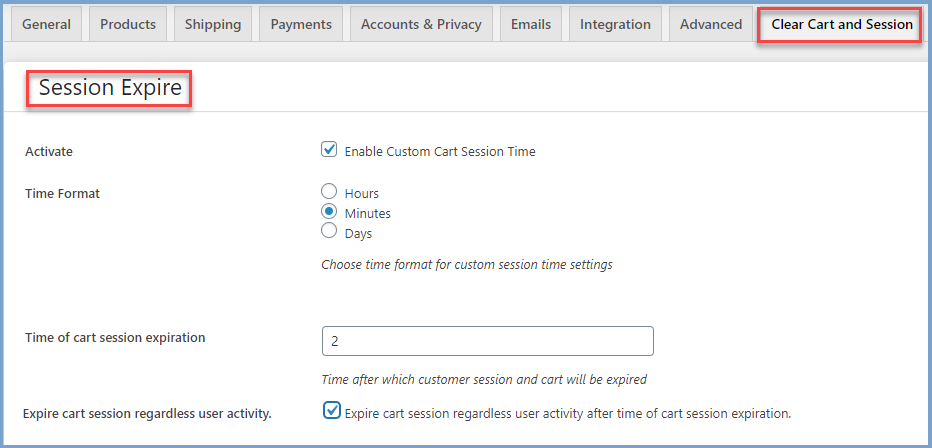
After activation, navigate to WooCommerce → Settings → Clear Cart and Session. The plugin is divided into three main sections: Session Expire, Empty Cart Button, and Redirection Settings.
Session Expire
Configure how long carts and sessions remain active:
- Activate: Enable or disable custom cart session time
- Time Format: Set time in hours, minutes, or days
- Cart Session Expiration: Specify the duration before clearing
- Expire Regardless of Activity: Clear the session even if the user is active after the set time
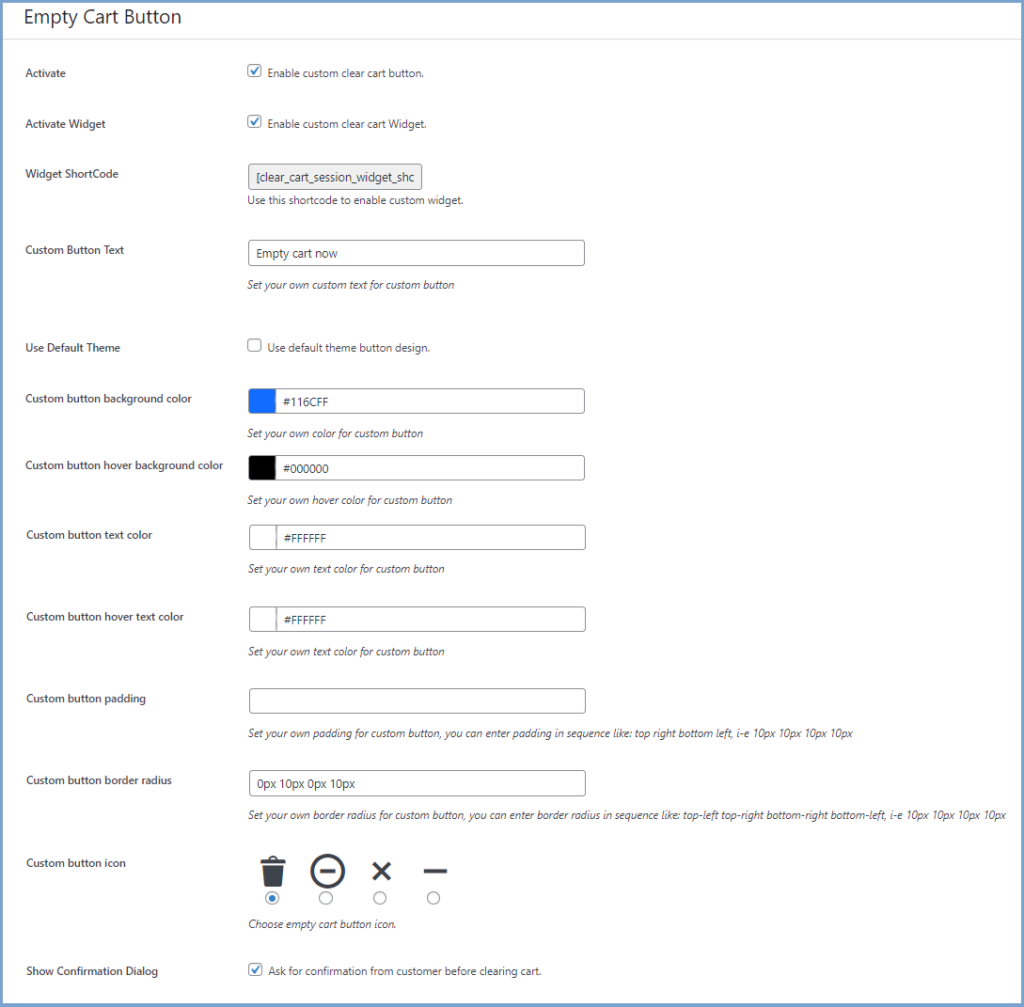
Empty Cart Button
Customize how the cart can be cleared by customers:
- Enable the empty cart button on the cart page
- Activate a custom clear cart widget
- Use a shortcode for the widget
- Customize button text, colors, padding, border radius, and icons
- Show confirmation dialog to avoid accidental clearing
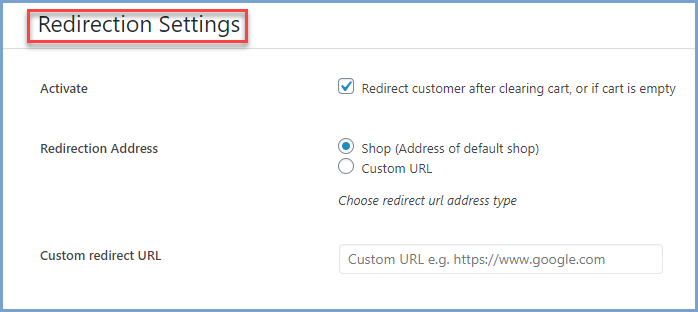
Redirection Settings
Redirect users after clearing the cart:
- Enable redirection
- Redirect to the shop page or a custom store page
- Specify a custom URL for redirection
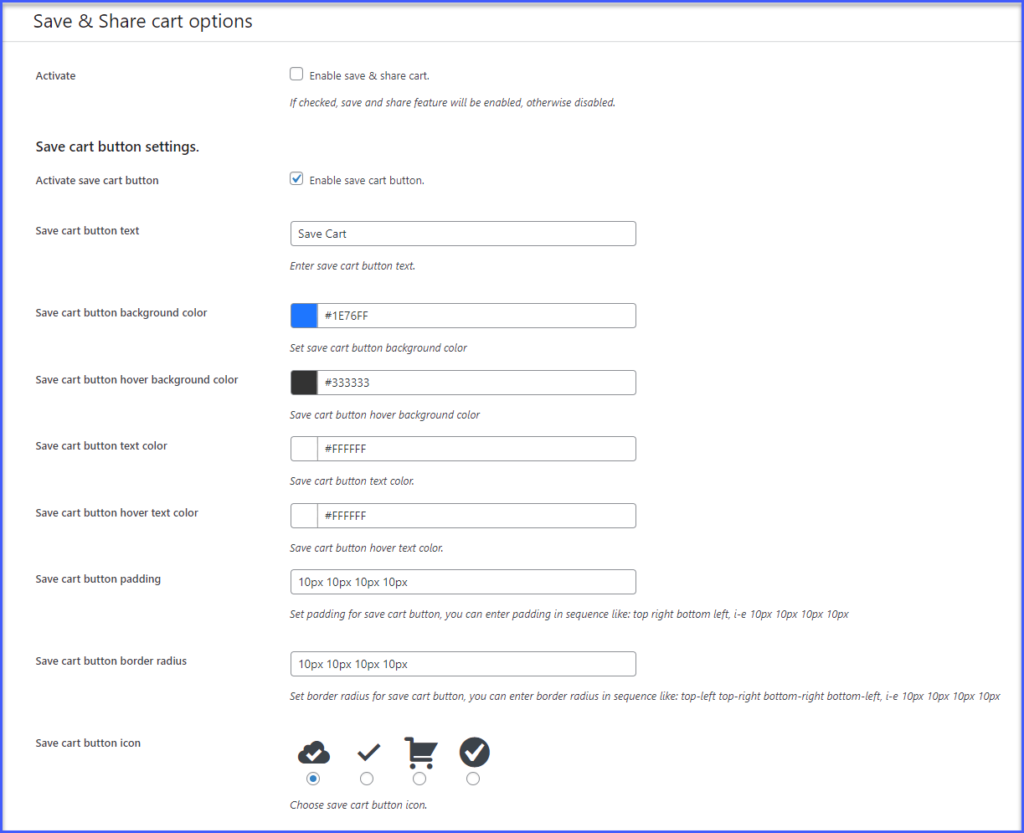
Save & Share Cart Feature
The plugin also includes a Save & Share Cart functionality to enhance user experience.
- Save Cart Button: Enable and customize the save cart button
- Share Cart Button: Enable sharing through platforms like Facebook, WhatsApp, Skype, LinkedIn, Twitter, and Email
- Popup Customization: Set heading text, colors, border radius, and button alignment for the popup
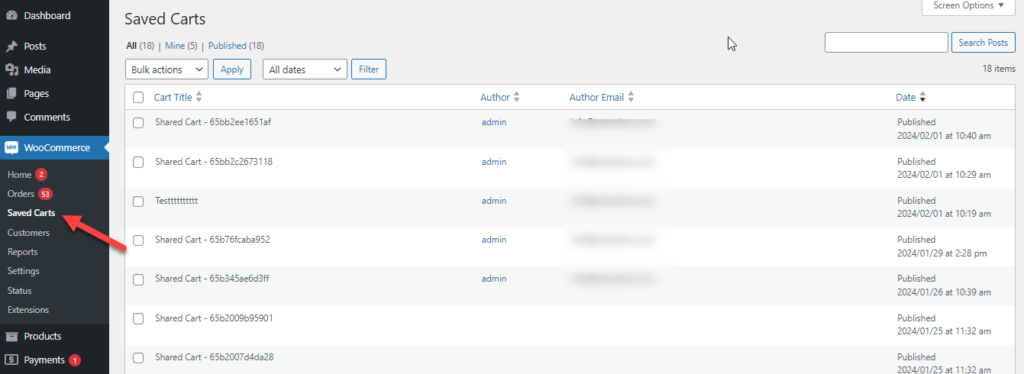
- Manage Saved/Shared Carts: Admins can view all saved and shared carts under WooCommerce → Saved Carts
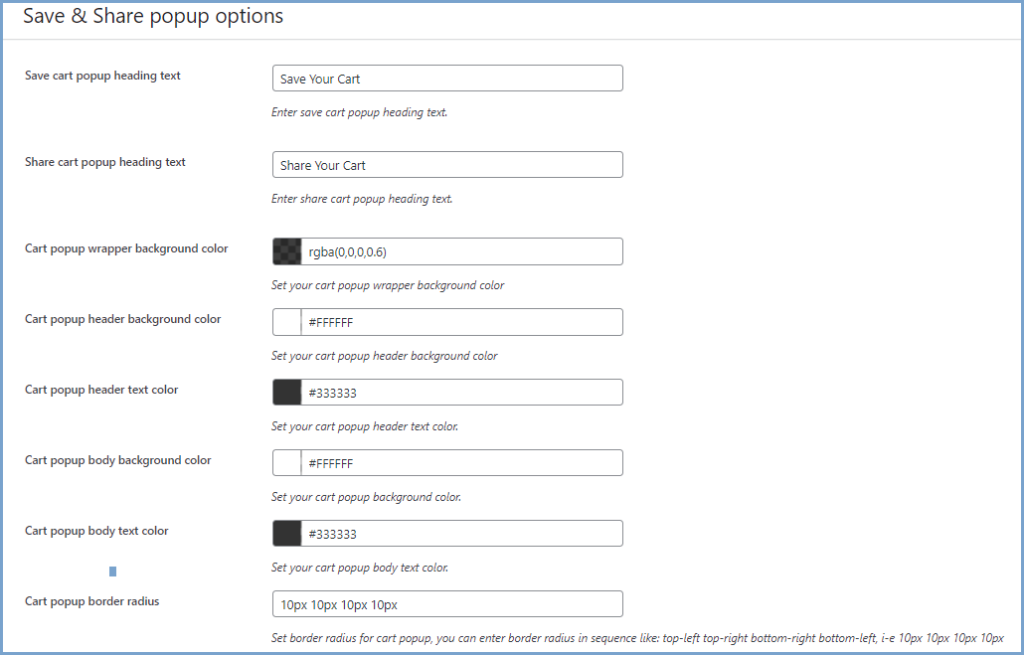
Save & Share Popup Options
Here, you can customize the appearance and functionality of the save and share cart popup:
- Popup Heading Text: Set the heading text for save and share cart popups.
- Popup Colors: Configure the background and text colors for the popup wrapper, header, and body.
- Popup Border Radius: Set the border radius for the popup.
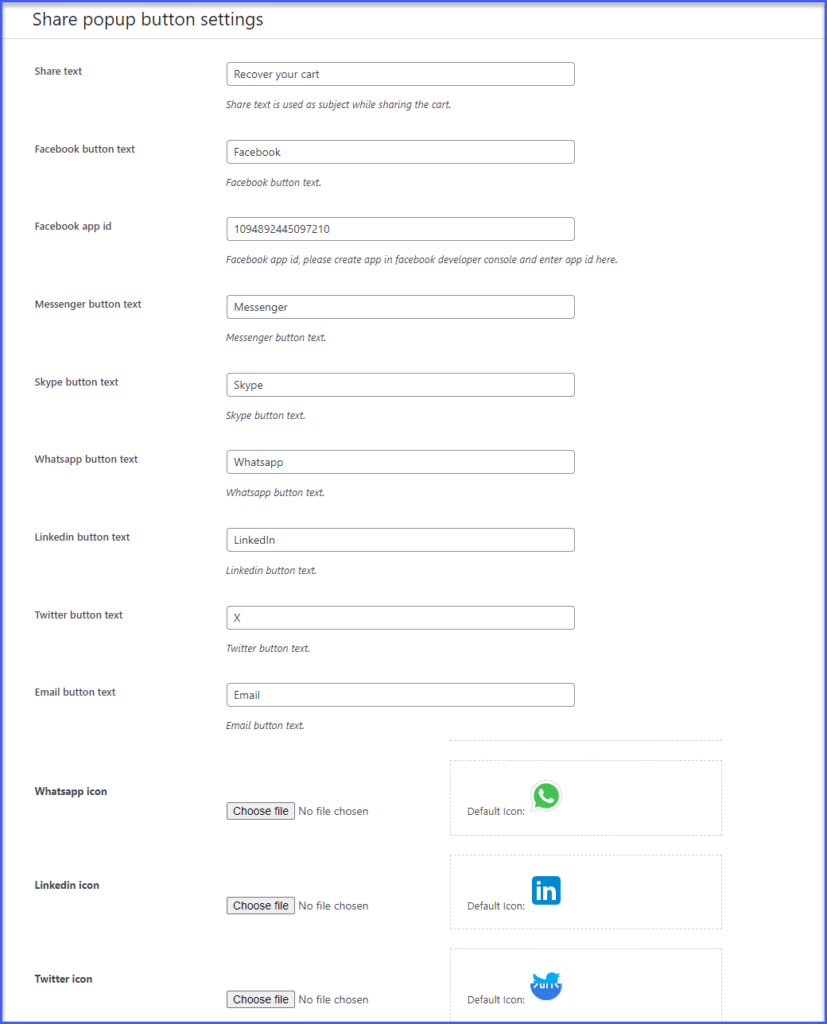
Share Popup Button Settings
In this section, you can configure the share options for various platforms:
- Share Text: Enter the subject text for sharing the cart.
- Platform Buttons: Customize text, and upload icons for Facebook, Messenger, Skype, WhatsApp, LinkedIn, Twitter, Email, and link sharing.
Buttons General Settings
In buttons general settings, you can set the alignment of the save and share cart buttons:
Buttons Alignment: Choose left, center, or right alignment.

Managing Saved/Shared Carts
Check and manage all saved carts in the Saved Carts section under WooCommerce > Saved Carts. This section allows you to view and manage carts saved or shared by your customers.
Best Practices for Managing Sessions
Clearing sessions improves performance and security, but requires caution:
- Data Loss: Clearing sessions deletes all cart data. Always warn users before removing carts.
- Payment Gateway Issues: Avoid clearing sessions during checkout to prevent payment errors.
- Forced Logins: Session clearing may require customers to log in again. Perform clearing during low-traffic periods or provide a warning.
Install a Clear Cart Button Today
The Clear Cart and Sessions for WooCommerce plugin by FME Addons is a powerful solution to manage customer carts efficiently. By adding a Clear Cart button, you give your customers control while keeping your WooCommerce store organized and optimized.
Install and configure the plugin today to improve shopping experiences, reduce abandoned carts, and maintain a cleaner system.
Frequently Asked Questions
Q. Can I set a custom time for clearing carts and sessions?
Yes, you can set a custom duration in hours, minutes, or days in the Session Expire section.
Q. Can I track and manage saved carts?
Yes, saved and shared carts can be viewed and managed under WooCommerce → Saved Carts.
Q. Can customers clear their own carts?
Yes, the plugin provides a customizable “Empty Cart” button for customer convenience.
Q. Can users be redirected after clearing their cart?
Yes, the plugin allows you to redirect users to the shop page or a custom URL after clearing the cart.
Q. Does clearing sessions affect checkout?
Clearing sessions during checkout may disrupt payment gateways, so configure expiration and clearing times carefully.
