


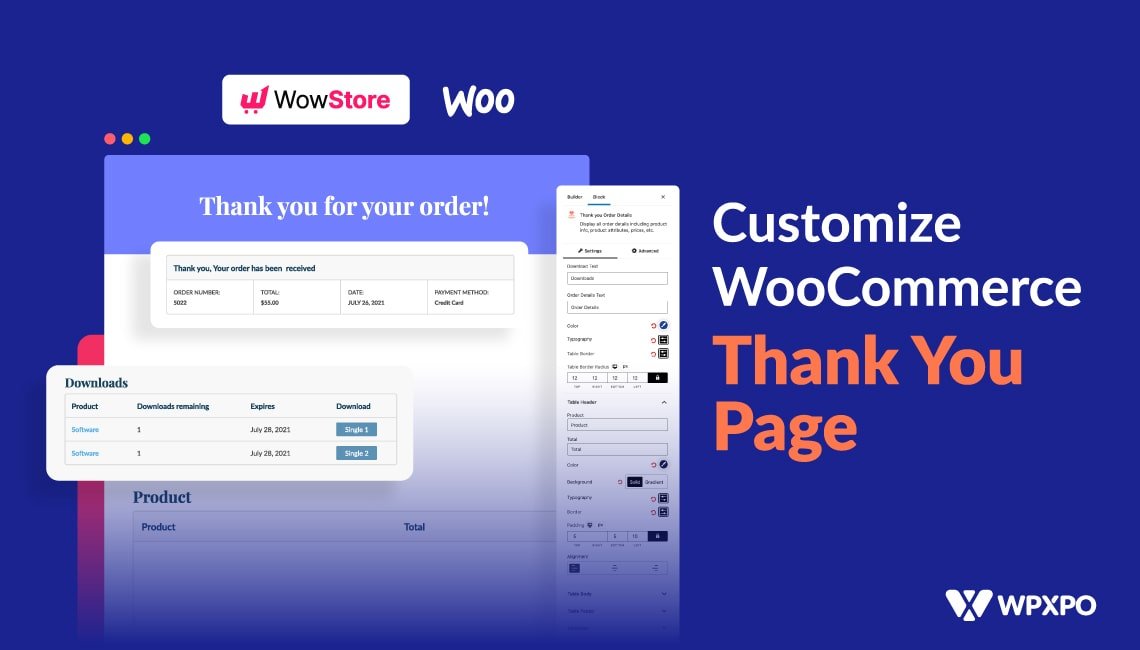
When customers complete a purchase on your WooCommerce store, what happens next matters more than you might think. That moment right after checkout is valuable real estate on your site, and the default thank you page that comes with WooCommerce is pretty basic. Most store owners just let customers see the standard confirmation message and then send them on their way, but there’s actually so much more you can do with that space.
You could be showing targeted upsell offers, personalized messages based on what they bought, or even redirecting them to pages that encourage them to explore other products, and all of this depends on having the right setup for your WooCommerce thank you page.
The ability to create multiple WooCommerce thank you pages based on different conditions is genuinely transformative for how you engage with customers after they’ve made a purchase. Instead of treating all customers the same way after checkout, you can now craft unique experiences depending on what products they bought, which payment method they used, or which category their purchase falls into.
This level of personalization creates better customer journeys and naturally leads to more repeat purchases and engagement.
Understanding Why Custom Thank You Pages Matter for Your Store
Before jumping into the technical setup, it’s worth understanding what makes a custom thank you page for WooCommerce so valuable in the first place. The thank you page is one of the few moments where customers are actively engaged and receptive to what you’re showing them. They just completed a transaction, they’re in a positive mindset, and they’re actually looking at your website. If you use this moment wisely, you can turn a one-time buyer into a repeat customer.
Think about it this way: a customer who buys a coffee maker from your store has different needs than someone who purchases coffee beans. After buying the coffee maker, they might be interested in seeing related products like grinders or filters.
The customer buying beans might want to see brewing guides or other types of coffee. With the ability to create multiple WooCommerce thank you pages, you can show each group exactly what matters to them instead of the same generic message to everyone.
Beyond just selling more products, a WooCommerce thank you page that’s customized to your customer’s purchase also builds trust. When customers see that you understand what they bought and you’re offering relevant follow-ups, they feel valued instead of like just another transaction.
This psychological element of personalization is often overlooked, but it actually makes a real difference in customer retention.
How Product-Based Thank You Pages Work
One of the most straightforward ways to set up a custom thank you page for WooCommerce is to create rules based on specific products. When a customer purchases a particular item or items from a specific category, they get redirected to a unique thank-you page designed just for that purchase.
Here’s how this works in practice: let’s say you sell both digital products and physical goods. The experience after buying a digital product should be different from buying something physical. With a custom thank you page for WooCommerce, you can redirect digital product buyers to a page that includes immediate download links and setup instructions, while physical product buyers see shipping information and tracking details.
The same plugin that handles this also lets you layer in additional offers that make sense for each product type. The rule system allows you to get incredibly specific with your conditions. You’re not limited to just one rule either.
You can create multiple rules, assign them different priority levels, and the system will apply the most relevant one based on what the customer purchased. This means if someone buys a product that matches multiple rules, the rule with the highest priority wins, ensuring the right thank you page shows up every single time.
What becomes really powerful is when you combine product-based rules with category-based rules. Maybe you want all products in your “Premium” category to show a special thank you page with exclusive upsell offers, while “Budget” category items show a different page. You can create both of these WooCommerce thank you page variations and apply them simultaneously without any conflicts.
Setting Up Payment Method-Based Redirects
Another powerful dimension of customization happens when you factor in payment methods. Different customers use different payment methods for legitimate reasons, and their purchase experience can be customized based on this choice. A customer who paid with a credit card might have different needs than someone who used PayPal or another method.
When you set up payment method-based rules for your WooCommerce thank you page, you’re essentially saying “if someone paid with X method, show them Y page.” This is useful for several reasons. Some payment methods come with their own follow-up requirements, some customers who choose certain payment options might be more interested in specific products, or you might want to offer different incentives based on payment method to encourage preferred payment types in the future.
The plugin automatically includes all the payment methods available on your store, so if you add a new payment option later, it’s already integrated into the system. You just need to configure what thank you page should appear for each one. The setup for this is straightforward and doesn’t require you to manually add payment methods each time you make a change to your store.
Step-by-Step Setup Guide for Creating Multiple Thank You Pages
Getting started with creating multiple WooCommerce thank you pages is simpler than it might sound, though the process does involve several steps to ensure everything works correctly.
First, install and activate the plugin. Once you’ve installed the Customized Thank You Pages plugin and activated it, you’ll see a new menu item appear in your WooCommerce settings. Navigate to WooCommerce > Settings > Customized Thank You Pages. This is your main hub for managing everything related to your WooCommerce thank you page configuration.
Enable the feature. In the General Settings tab, you’ll find the option to “Enable Custom Thank You Page.” Check this box to activate the functionality. You’ll also see an option for “Enable Custom Thank You Pages per Product,” which allows you to set unique thank you pages directly at the product level if you prefer that approach over creating global rules.
Choose your redirect destination. The plugin gives you flexibility in where customers go after checkout. You can redirect to a custom WordPress page, a product page, a category page, or an external URL. Think about what makes sense for your business and select the option that fits your strategy.
Create your first rule. Go to WooCommerce > Thank You Page Rule and click to add a new rule. Give your rule a descriptive name so you remember what it’s for. Enable the rule using the checkbox, then set its priority if you’re creating multiple rules. The priority system is important because if a customer’s purchase matches multiple rules, the highest priority rule wins.
Set your rule conditions. This is where you decide when the rule applies. You can base it on product, category, tags, or product type (simple, variable, or grouped). Select whichever condition matches your business logic. Once you choose the condition type, additional options appear letting you select the specific products, categories, or tags that trigger this rule.
Assign the thank you page. Finally, specify which page, product, or URL customers should see when this rule is triggered. You can choose from your existing pages, select a specific product page, pick a category page, or enter a completely external URL if you want to redirect somewhere off your site entirely.
For payment method-based rules, navigate to WooCommerce > Settings > Customized Thank You Pages > Payment Methods. Here you’ll see all your active payment methods listed. For each one, you can assign a specific thank you page or custom redirect. This keeps payment-based customization separate from product-based customization, making it easier to manage.
Setting Product-Level Thank You Pages
Sometimes you don’t want to use the rule system at all and instead prefer to set a custom thank you page for WooCommerce directly on individual products. This approach works well if you have a smaller number of products that each need unique post-purchase experiences, or if you want to override the general rules for specific items.
When you edit a product in WooCommerce, you’ll find a section for Customized Thank You Pages settings. From there, you can select a specific thank you page for that product and set a priority level.
The nice thing about this approach is that product-level settings take priority over general rules, so you have complete control over the hierarchy. If a product has its own thank you page assigned and it also matches a general rule, the product-level page always wins.
This becomes especially useful when you’re testing different thank you page variations or when you have a few star products that deserve special treatment. You can give a bestselling item a premium thank you page experience without affecting how other products behave.
Customizing Your Thank You Page Design
Creating the pages themselves is straightforward. In your WordPress pages section, click to add a new page and this becomes your thank you page template. The plugin provides several shortcodes you can use to add dynamic content that changes based on what the customer purchased.
For showing order information, use the order table shortcode to display a complete summary of what they bought, the total amount, and other relevant details. You can also use order detail placeholders to show specific information like order number, total amount, or billing email. These placeholders pull real data from each customer’s actual order, so the information is always accurate and personalized.
For customer information, use the customer details shortcode to display the name, email, address, and other relevant customer information. This reinforces that you know who they are and creates that personal touch we talked about earlier.
For encouraging additional purchases, you can add upsells and cross-sells directly to your thank you page. Show related products that complement what they just bought, products from the same category, or items frequently bought together. The plugin integrates with your WooCommerce product relationships, so these suggestions are automatically relevant.
Customize the appearance to match your store. The plugin gives you control over colors, fonts, and styling through the table customization settings. You can adjust title font weight, size, and color, change the table header background and text colors, modify border radius for rounded corners, and set border colors and widths. You can do all this through the plugin settings or use the WordPress customizer for a visual preview while you’re making changes.
Managing Multiple Rules and Priorities
When you’re running a complex store with many products and categories, having multiple rules becomes necessary. The key to making this work without creating conflicts is understanding how priority works. Rules are evaluated in order of their priority level, and the first matching rule wins.
If you have a product that matches both a product-specific rule and a category-based rule, whichever has the higher priority determines which thank you page appears. This means you need to think strategically about your priorities when setting them up. Generally, broad rules usually get lower priority numbers.
More specific rules, like those targeting individual products or small product groups, usually get higher priority numbers. This way, specific conditions override general ones, which is usually what you want. You can also enable or disable individual rules without deleting them, which is helpful if you want to test a rule before rolling it out fully or if you want to temporarily pause a rule for seasonal changes or promotions.
Using Shortcodes for Dynamic Content
Beyond the basic customization, the plugin includes several shortcodes that let you add dynamic elements to your WooCommerce thank you page. The header section shortcode lets you add a custom header message.
The order details placeholder shortcodes let you reference specific pieces of information like order number, customer name, product names, quantities, and prices. This creates a fully personalized experience where the page speaks directly to what the customer purchased and who they are.
You can display multiple types of information by combining different shortcodes. A well-designed thank you page might have a friendly header message, followed by a complete order table, customer information, related product recommendations, and finally a call-to-action encouraging them to explore other sections of your store.
All of this is possible without touching any code, just by placing the right shortcodes on your page.
Setting a Global Thank You Page
Sometimes you want simplicity. If you’d rather have one unified thank you page experience for your entire store instead of managing dozens of individual rules, you can set a global thank you page that applies to everyone. This works well for smaller stores or when you’re just starting out and want to keep things simple before getting more sophisticated with your customization.
A global WooCommerce thank you page is assigned through the General Settings in the plugin, and every customer sees this same page after checkout regardless of what they purchased or how they paid. You can still customize this page with the same shortcodes and styling options, so even with a global approach, your thank you page is still personalized through dynamic content that shows each customer their specific order details.
Best Practices for Thank You Page Strategy
Before diving too deep into creating multiple thank you pages, think about your actual business goals. What do you want customers to do after they make a purchase? Are you trying to encourage immediate follow-up purchases, build email list subscribers, direct people to your knowledge base or support resources, or something else entirely? Your thank you page strategy should align with these goals.
Start simple if you’re new to this. Maybe begin with just one or two thank you pages based on your most important product categories. Once you see what works and what doesn’t, you can expand to more complex rule sets. Overthinking your thank you page structure from the start can actually make things harder to manage.
Also pay attention to mobile experience. Your thank you page needs to look good on phones because plenty of customers are completing purchases from mobile devices. Test your thank you pages on different devices to make sure everything displays correctly and that any upsell products or links work properly.
Finally, remember that your thank you page is content, not a dead end. Every element on that page should either provide value to the customer, encourage them toward a goal you’ve set, or both. Cluttering the page with too many offers or making it confusing defeats the purpose of the personalization you’ve worked to create.
Conclusion
Creating multiple WooCommerce thank you pages by product and payment method turns what used to be an afterthought into a strategic asset for your store. Instead of using a generic thank you page for everyone, you now have the ability to create personalized experiences that recognize what each customer purchased and show them relevant next steps.
Whether you’re setting up product-based rules, payment method redirects, category-specific pages, or a combination of all three, the setup process is straightforward and the payoff in customer engagement is real.
The custom thank you page for WooCommerce system gives you complete flexibility in how you handle post-purchase experiences while keeping the technical setup simple enough for anyone to manage. Start with the basics, test what resonates with your customers, and gradually expand your thank you page strategy as you learn what drives better engagement and repeat purchases on your store.
